Best viewed on two screens, or side by side
Put the demo on one side and this walkthrough on the other so you can read a step and do it without flipping back and forth. Two monitors works best. On one screen, snap each window to half: click the demo window and press ⊞ + ←, then this window and press ⊞ + → (on Windows). The demo opens in a new tab when you click Launch the demo above.
How the demo works
The demo is a fully working copy of the Nonprofit Formation loaded with sample answers. There is no sign-in and nothing you do is saved to a real account, so click freely and experiment. You will see a red DEMO MODE bar across the top with a Reset button if you ever want a clean slate.
Starting a nonprofit involves a sequence of decisions and filings that trip up most founders. This app turns that into a guided wizard, asking one question at a time and generating the documents you need as you go.
Your task: lay the foundation for a new nonprofit. You have a cause and the will to start. We will walk the formation steps in the right order so you end up with the decisions made and the documents drafted.
Start the formation wizard
When the demo opens you land on the welcome screen. The app is a step-by-step wizard, so there is no big menu to learn, just a clear path forward with your progress saved automatically in your browser.
Do this: Click Get Started (or Continue Where You Left Off if the demo has sample progress) to enter the wizard.
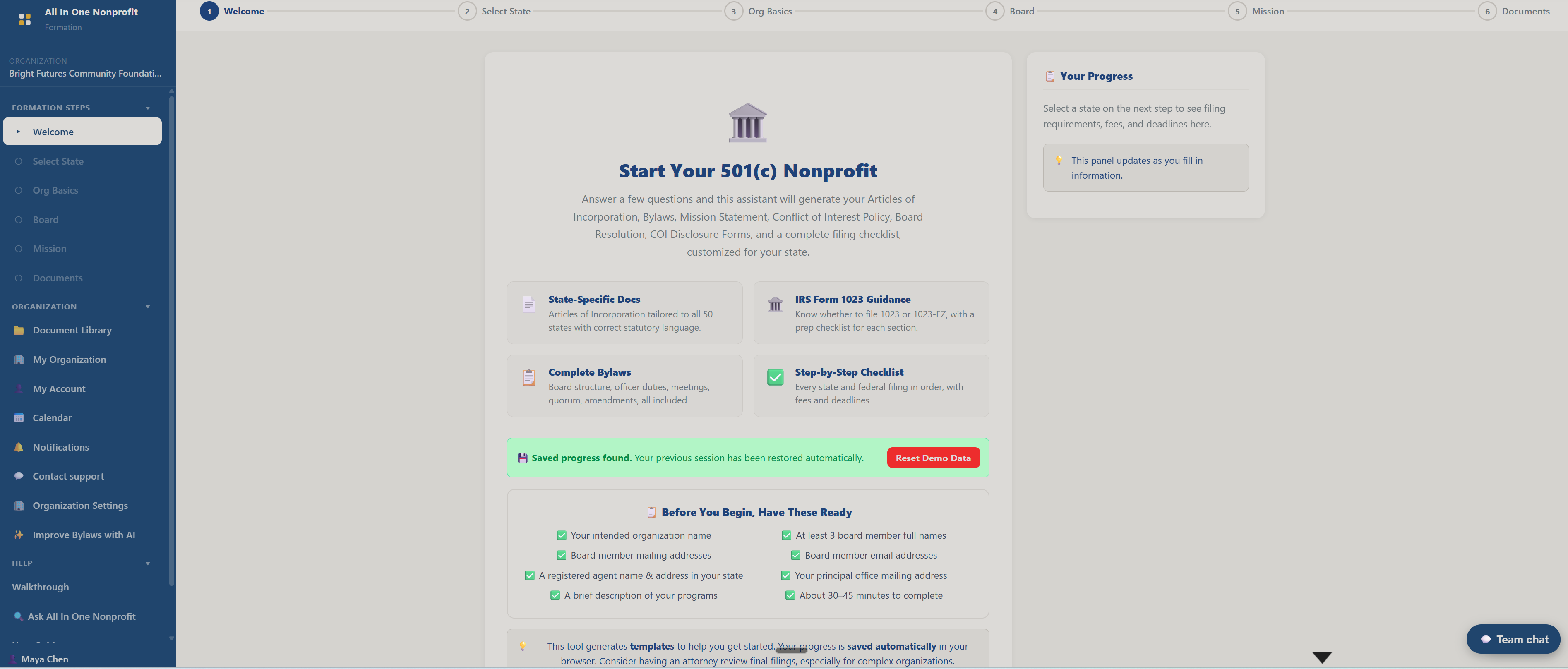
Why it matters: the biggest barrier to starting a nonprofit is not knowing the steps. A guided path removes the guesswork.
Choose your state
The first step is your state. Formation rules, fees, and filing offices differ by state, so the wizard tailors what comes next to where you will incorporate.
Do this: Pick a state from the dropdown and continue. Notice how the guidance adjusts to that state's requirements.
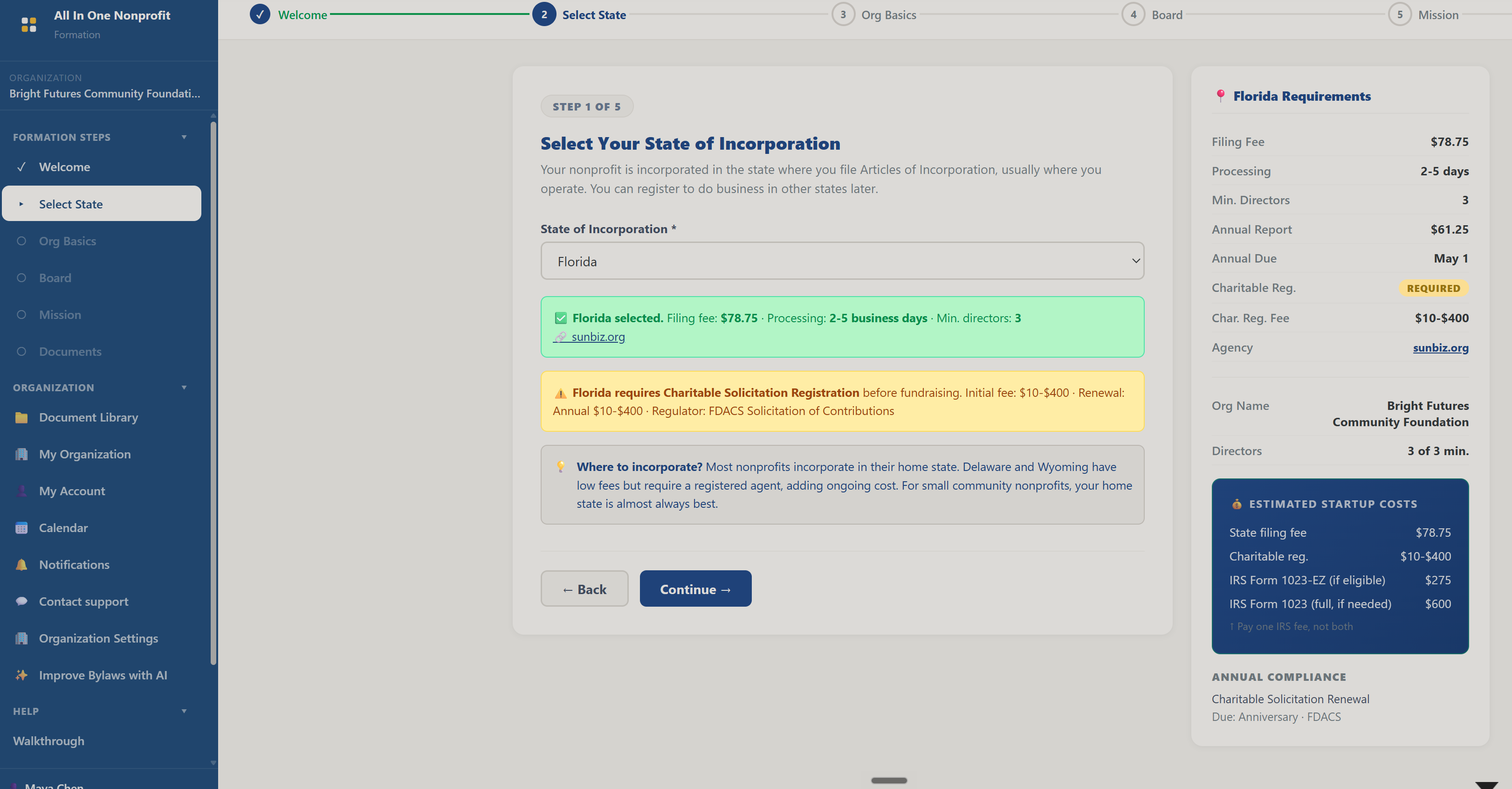
Why it matters: nearly every formation step depends on your state. Getting this right up front keeps the rest of the process accurate.
Name your nonprofit and write the mission
Next the wizard helps you choose a legal name (and check the basics that make a name usable) and write a clear mission statement. These two decisions shape your brand and your IRS application.
On the same Mission step you also pick your 501(c) type (most nonprofits choose 501(c)(3)) and, for a 501(c)(3), your foundation classification: public charity or private foundation. That choice becomes Part VII (Foundation Classification) of Form 1023, and a built-in Help me choose tool can suggest one from your funding mix.
Do this: Enter a proposed name and a one-sentence mission, choose 501(c)(3) and a foundation classification, then continue. The wizard keeps your answers as you move forward.
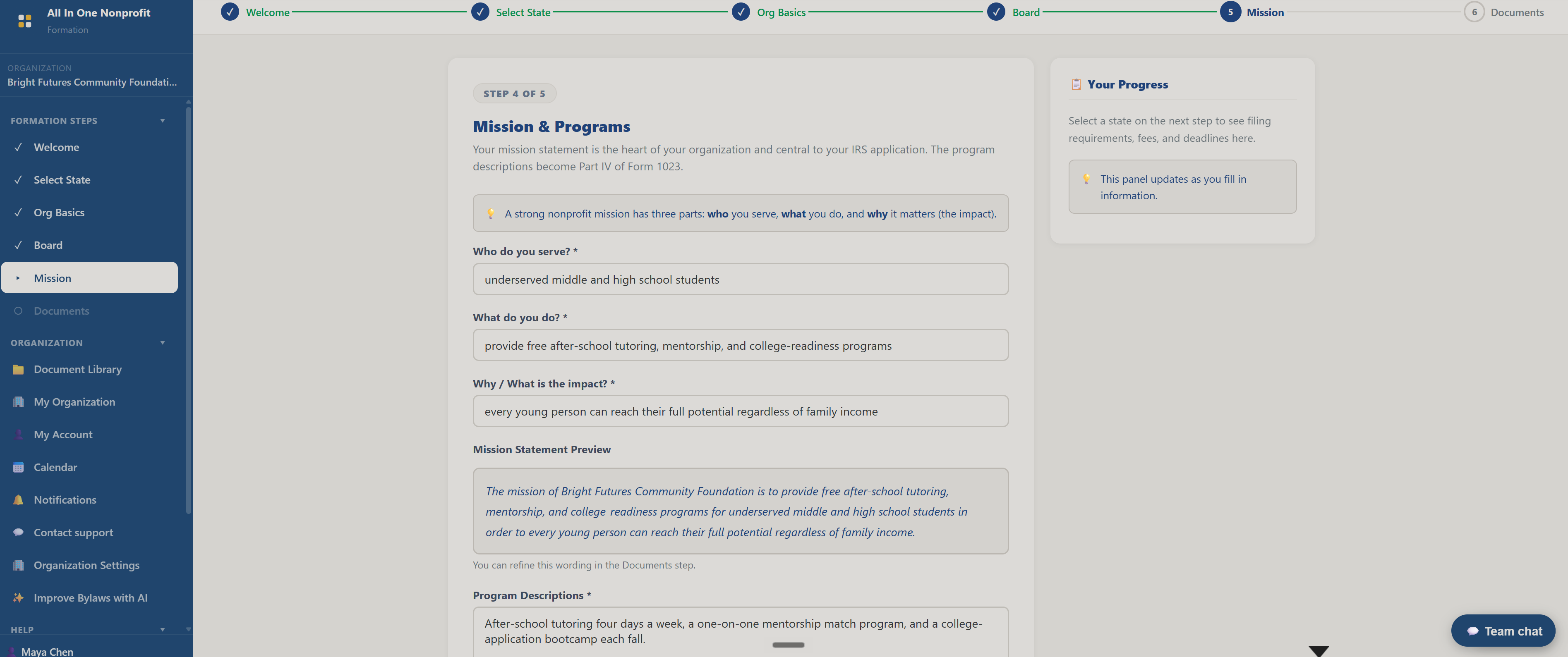
Why it matters: your name and mission appear on every legal document and every appeal. Getting them clear now saves rework later.
Build your founding board
The wizard walks you through assembling a founding board of directors, the minimum number, the key roles, and what a starting board should look like for a credible 501(c)(3).
Do this: Add a few sample board members and roles, then continue.
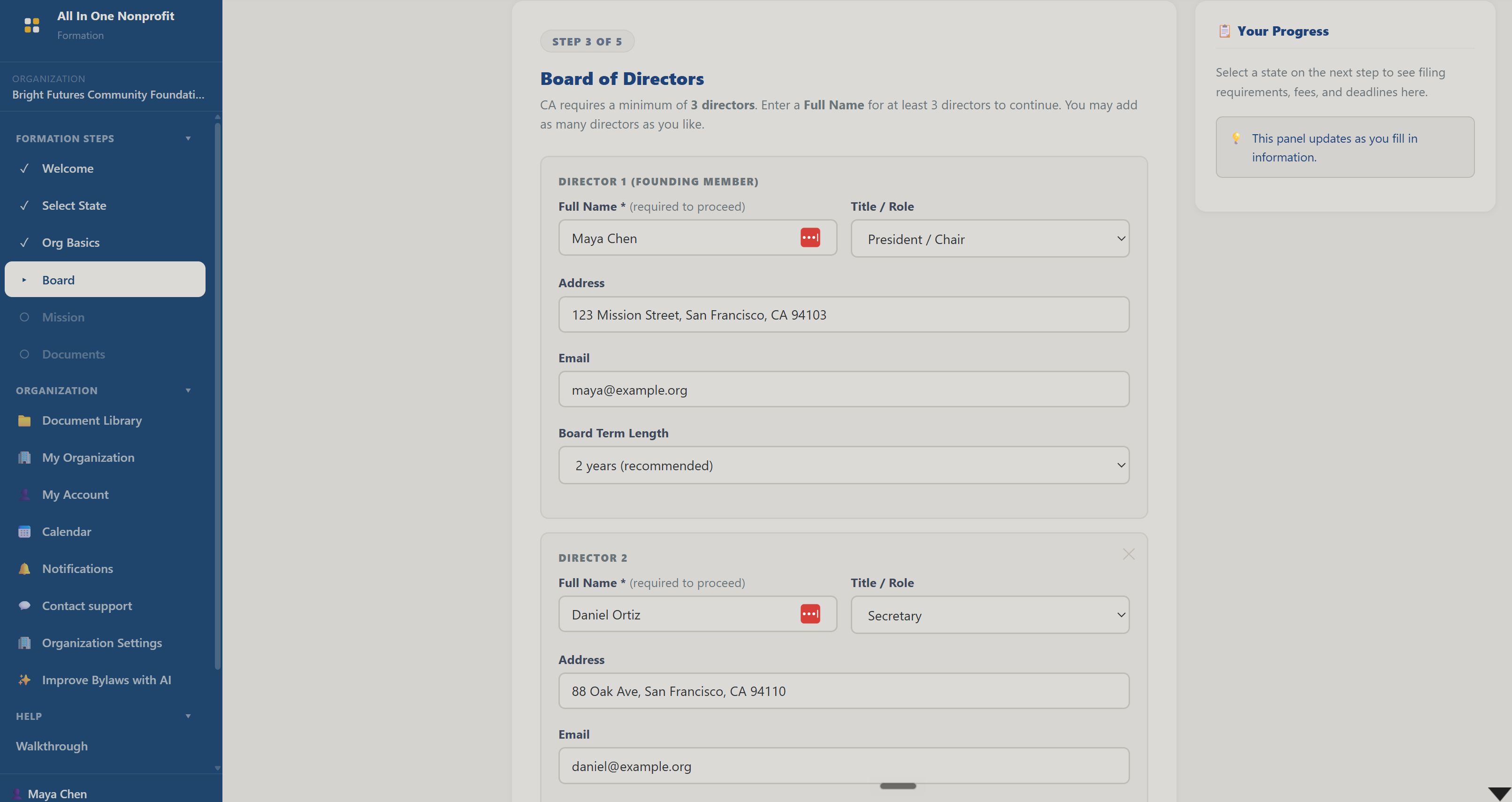
Why it matters: the IRS and your state expect a real governing board. Setting one up properly is a requirement, not an afterthought.
Generate your founding documents
Reach the Documents step, where the wizard turns everything you entered into draft founding documents, such as articles of incorporation and bylaws starting points, ready to review and adapt.
Do this: Open the Documents step and review the generated templates. These are starting points to take to an attorney for complex situations.
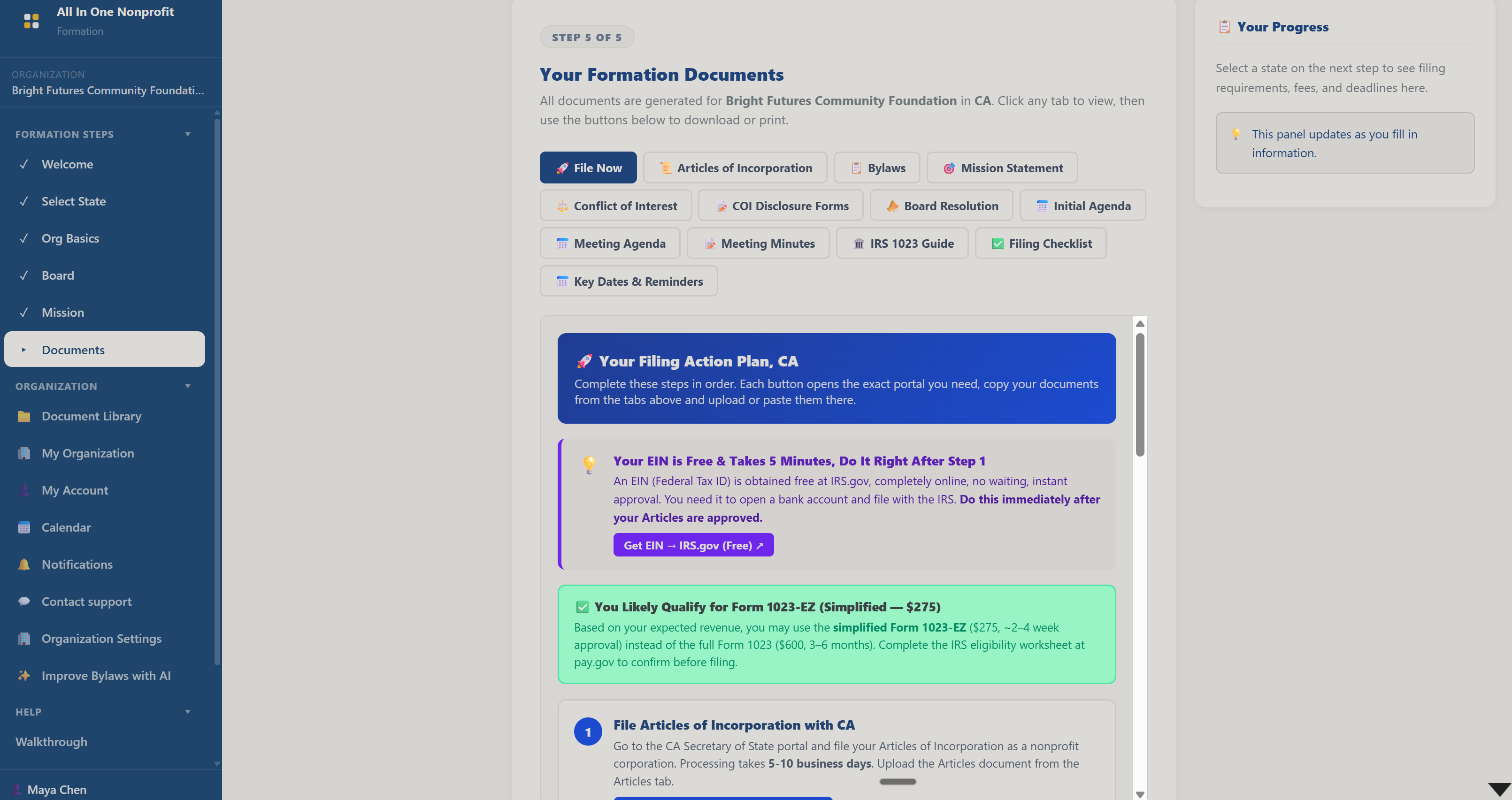
Why it matters: this is the payoff, the paperwork that used to require a lawyer or expensive service is drafted for you to refine.
Keep every document in your Document Library
Every All In One Nonprofit app shares one secure, organization-wide Document Library. The Document Library link sits in the sidebar just under Dashboard and opens the Library in a new tab, where your whole team can find any file you have saved.
Do this: Find Document Library in the sidebar. Whenever you generate your bylaws, formation checklist, or other startup documents in this app, use the Save to Library button on the export toolbar. The Library keeps every version, lets you archive or restore files, and stays private to your organization.
Why it matters: one shared home for your documents means nothing lives only on one person's computer, and the current version is always easy to find.
Send documents for approval and signature
A document in your Library can be routed for review and, when it needs to be signed, for a legally sound electronic signature, all without leaving All In One Nonprofit. Reviewers approve or request changes from a secure link, and signers sign by typing or drawing their name behind a consent checkbox. The finished, signed PDF files itself back into the Library automatically.
Do this: From the Document Library, open a document and choose Submit for approval, or send it for signature, then enter the person's email. They get a one-time link with no account required, and you watch the status flip to Approved or Signed.
Why it matters: approvals and signatures are how policies, agreements, and board documents become official, and keeping that whole trail in one place protects the organization.
Get help anytime with Contact support
If you ever get stuck, the Contact support link in the sidebar opens a help request tied to your account. You describe what you need, send it, and our team replies by email, and you can follow the whole conversation from the support page.
Do this: Click Contact support in the sidebar to see the request form. Signed in to your real account, you can send a message and then track replies and status right there.
Why it matters: real help from real people is part of the product, so you are never left staring at a blank screen on your own.
Your nonprofit's foundation is taking shape
You just moved through the formation wizard, from your state and name to a founding board and draft documents, using the same steps you would follow to start your real nonprofit. Explore any other part of the demo, or reset it and try it your own way.